
Generate SQL query for GL transactions [AX 2012]

In my last blog I did a demonstration of using an SQL query to build a PowerBI report for the general ledger transactions.

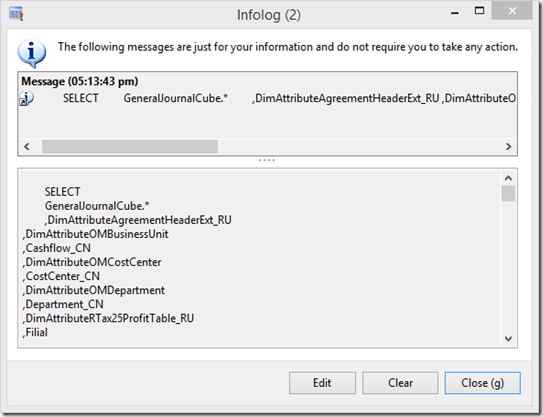
I hard coded the RecId for the financial dimensions. It might be cumbersome to build the query manual. So here I wrote a job you could run to get the query. It will spit out an infolog which you should be able to copy and paste.

static void navax_generateGLQuery(Args _args)
{
    DimensionAttribute  dimensionAttribute;
    str                 sqlStatement, dimNameStr, dimMaxStr, name;
    sqlStatement =
    @'
        SELECT
        GeneralJournalCube.*
        %1
        FROM GeneralJournalCube INNER JOIN
        (
            SELECT
            DAVC.RecId as CombinationId
            %2
            FROM
            DIMENSIONATTRIBUTEVALUECOMBINATION DAVC INNER JOIN
            DIMENSIONATTRIBUTEVALUEGROUPCOMBINATION DAVGC ON
            DAVC.RECID = DAVGC.DIMENSIONATTRIBUTEVALUECOMBINATION INNER JOIN
            DIMENSIONATTRIBUTELEVELVALUE AS DAVL ON
            DAVL.DIMENSIONATTRIBUTEVALUEGROUP = DAVGC.DIMENSIONATTRIBUTEVALUEGROUP INNER JOIN
            DIMENSIONATTRIBUTEVALUE AS DAV ON DAV.RECID = DAVL.DIMENSIONATTRIBUTEVALUE INNER JOIN
            DIMENSIONATTRIBUTE DA ON DA.RECID = DAV.DIMENSIONATTRIBUTE
            GROUP BY DAVC.RECID
        )
        Dimensions ON
        Dimensions.CombinationId = GeneralJournalCube.LEDGERDIMENSION
    ';
    while select ViewName, RecId, Type, Name from dimensionAttribute
    {
        if (dimensionAttribute.Type == DimensionAttributeType::CustomList)
        {
            name = dimensionAttribute.Name;
        }
        else
        {
            name = dimensionAttribute.ViewName;
        }
        dimNameStr += strFmt(',%1\n', name);
        dimMaxStr += strFmt(',MAX(CASE WHEN DA.RECID = %1 THEN DAV.ENTITYINSTANCE ELSE NULL END) AS %2\n', dimensionAttribute.RecId, name);
    }
    sqlStatement = strFmt(sqlStatement, dimNameStr, dimMaxStr);
    info(sqlStatement);
}

Its a bit crude but at least you get all the dimensions.
image

Popular posts from this blog

Approve Workflow via email using template placeholders #Dyn365FO

Dynamics 365 for Finance and Operations has placeholders which can be inserted into the instructions. Normally you would want this to show up in the email that is sent. One of the most useful ones is the URL link to the exact record that you are approving. In the workflow configurations use the placeholder and build up your message. Towards the end it has workflow specific ones. The URL token is %Workflow.Link to web% . For the technical people the token is replaced in this class WorkflowDocumentField. This is what I inserted into my email template. <BODY> subject: %subject% <BR> message: %message% <BR> company: %company% <BR> for: %for% <BR> </BODY> Should look like this. The final result looks like this. If you debug these are the place holders that are put together.

AX - How to use Set and SetEnumerator

The Set class is used for the storage and retrieval of data from a collection in which the values of the elements contained are unique and serve as the key values according to which the data is automatically ordered. You can create a set of primitive data types or complex data types such as a Class, Record or Container. Below is sample of a set of records. static void _Set(Args _args) {     CustTable       custTable;     Set             set = new Set(Types::Record);     SetEnumerator   setEnumerator;     ;     while select custTable     {         if (custTable && !set.in(custTable))         {             set.add(custTable);         }     }     if (!set.empty())     {    ...

Purchase requisition – Price

The price fields on the purchase requisition are non-editable for catalogue items. It is expected that a trade agreement be created. The price fields are only editable for these conditions: Form is opened view AP -> Periodic -> Purchase Requisition -> All purchase requisition, or Line type is “Non-catalogue item”, or User is task owner. Ie. The task is assigned to the user. In other words he/she maybe the purchaser that gets the price. User is approval owner. Ie. The approval is assigned to the user. In other words he/she maybe the manager that approves the final requisition. For catalogue items on the purchase requisition line can only select between the vendor directly associated with the item and the cheapest vendor as found through the purchase price trade agreements. If another vendor is requested the vendor can be blanked and the user can enter a “Proposed vendor” in the proposed vendor field on the general tab page for the purchase requisition line.   NOTE: ...