
Regression Suite Automation Tool - Create unique values

The RSAT doesn't have any roll back feature. So, it can be frustrating updating the excel file with
unique records.


Well not to worry - RSAT supports Excel formulas. The user guide suggests using RandBetween(a,b) Excel function.
However, that isn't really reliable and you are hoping you don't get the same random number.

I have been using date formula. The below concatenates the datetime to the string.
=CONCATENATE("SS",TEXT(NOW(),"yymmddhhmmss"))
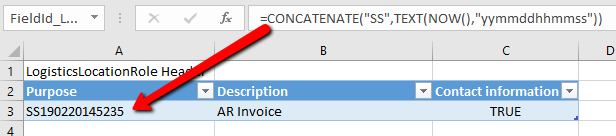

If you want to get started with RSAT.
Download the tool and the user guide from here.
https://www.microsoft.com/en-us/download/details.aspx?id=57357

You can also watch a short video that walks you through how to use it.

Popular posts from this blog

Approve Workflow via email using template placeholders #Dyn365FO

Dynamics 365 for Finance and Operations has placeholders which can be inserted into the instructions. Normally you would want this to show up in the email that is sent. One of the most useful ones is the URL link to the exact record that you are approving. In the workflow configurations use the placeholder and build up your message. Towards the end it has workflow specific ones. The URL token is %Workflow.Link to web% . For the technical people the token is replaced in this class WorkflowDocumentField. This is what I inserted into my email template. <BODY> subject: %subject% <BR> message: %message% <BR> company: %company% <BR> for: %for% <BR> </BODY> Should look like this. The final result looks like this. If you debug these are the place holders that are put together.

Purchase requisition – Price

The price fields on the purchase requisition are non-editable for catalogue items. It is expected that a trade agreement be created. The price fields are only editable for these conditions: Form is opened view AP -> Periodic -> Purchase Requisition -> All purchase requisition, or Line type is “Non-catalogue item”, or User is task owner. Ie. The task is assigned to the user. In other words he/she maybe the purchaser that gets the price. User is approval owner. Ie. The approval is assigned to the user. In other words he/she maybe the manager that approves the final requisition. For catalogue items on the purchase requisition line can only select between the vendor directly associated with the item and the cheapest vendor as found through the purchase price trade agreements. If another vendor is requested the vendor can be blanked and the user can enter a “Proposed vendor” in the proposed vendor field on the general tab page for the purchase requisition line.   NOTE: ...

Dynamics 365 Invoice Capture Feature

Microsoft recently released the new Invoice Capture for Dynamics 365 Finance. I ran through installing and configuring it.  From that experience, below is my brain dump and hopefully it can help with things that are not so obvious. Three type of invoice captures There are three invoice type paths that can be captured. These drive the screen layout and what kind of information is mandatory. PO invoice Header-only Cost invoice When an invoice comes in, you can select one of the three invoice types. Below are the three screen layouts and differences. PO invoice – Invoices of this type are associated with purchase orders. The purchase order details must be determined on each invoice line. Both the header and the lines must be reviewed in Invoice capture. This will create a pending vendor invoice. Header-only – Invoices of this type are associated with purchase orders. The purchase order field on the invoice header is a mandatory field. If the Automatically create invoice lines featur...