
Gotcha with Extending Retail Channel transaction table

I will start by pointing you to a good article Andreas Hofmann from Microsoft has written. It steps you through what you need to extend a transactional table in the Retail Channel and bring that back to HQ via the P Job.

https://dynamicsnotes.com/extending-a-transactional-retail-channel-table-with-additional-data-hq-x-table-extension-cdx-extension-table-crt-data-service/

Now to summerise the issue I faced recently (being a retail rookie).

Following the blog post I created a custom Int64 field on the RetailTransactionSalesTrans. However, when I ran the P job it failed with this error.

“Failed to convert parameter value from a String to a Int64”

I did some investigation by trying to find out what it is actually doing. Essentially the job will do an outer join to your custom extension table. Even though your custom field is 0 by default. You won’t be creating an extension record for every single transaction record. The p job will do an outer join between RetailTransactionSalesTrans to your custom CustomRetailTransSalesTrans, you will notice some blanks in your file that is coming to HQ.

See figure below what the file looks like.

image

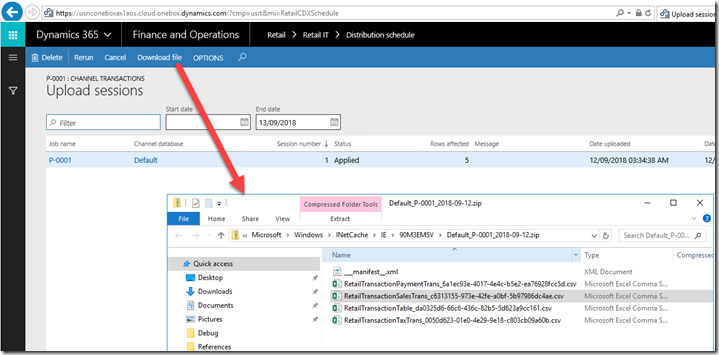
Remember also, that the sync happens by downloading and uploading flat files. That is why you have it trying to convert from string to int64. Hence, the error.

You can see the files by going to the Upload sessions and downloading the zip file.
image

As a colleague told me today. The advice is, use a string and treat it as a string from Channel to HQ.

Popular posts from this blog

Approve Workflow via email using template placeholders #Dyn365FO

Dynamics 365 for Finance and Operations has placeholders which can be inserted into the instructions. Normally you would want this to show up in the email that is sent. One of the most useful ones is the URL link to the exact record that you are approving. In the workflow configurations use the placeholder and build up your message. Towards the end it has workflow specific ones. The URL token is %Workflow.Link to web% . For the technical people the token is replaced in this class WorkflowDocumentField. This is what I inserted into my email template. <BODY> subject: %subject% <BR> message: %message% <BR> company: %company% <BR> for: %for% <BR> </BODY> Should look like this. The final result looks like this. If you debug these are the place holders that are put together.

Purchase requisition – Price

The price fields on the purchase requisition are non-editable for catalogue items. It is expected that a trade agreement be created. The price fields are only editable for these conditions: Form is opened view AP -> Periodic -> Purchase Requisition -> All purchase requisition, or Line type is “Non-catalogue item”, or User is task owner. Ie. The task is assigned to the user. In other words he/she maybe the purchaser that gets the price. User is approval owner. Ie. The approval is assigned to the user. In other words he/she maybe the manager that approves the final requisition. For catalogue items on the purchase requisition line can only select between the vendor directly associated with the item and the cheapest vendor as found through the purchase price trade agreements. If another vendor is requested the vendor can be blanked and the user can enter a “Proposed vendor” in the proposed vendor field on the general tab page for the purchase requisition line.   NOTE: ...

Dynamics 365 Invoice Capture Feature

Microsoft recently released the new Invoice Capture for Dynamics 365 Finance. I ran through installing and configuring it.  From that experience, below is my brain dump and hopefully it can help with things that are not so obvious. Three type of invoice captures There are three invoice type paths that can be captured. These drive the screen layout and what kind of information is mandatory. PO invoice Header-only Cost invoice When an invoice comes in, you can select one of the three invoice types. Below are the three screen layouts and differences. PO invoice – Invoices of this type are associated with purchase orders. The purchase order details must be determined on each invoice line. Both the header and the lines must be reviewed in Invoice capture. This will create a pending vendor invoice. Header-only – Invoices of this type are associated with purchase orders. The purchase order field on the invoice header is a mandatory field. If the Automatically create invoice lines featur...